
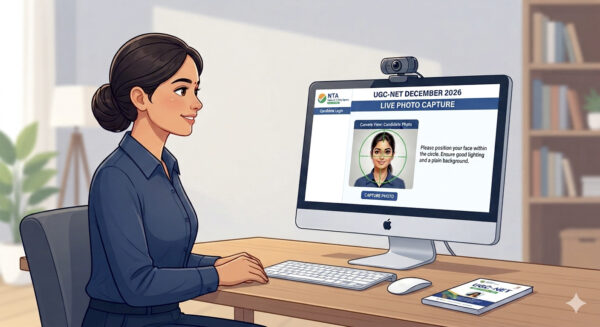
UGC NET 2026 Registration: NTA Shares Easy Steps For Live Photo Capture
Live photo capture has been introduced as a mandatory step in UGC NET 2026 application process to verify candidates’ identity and prevent impersonation

NEW DELHI: With many candidates complaining of issues during the live photo capture while registering for the UGC NET 2026, the National Testing Agency (NTA) has shared easy steps for the convenience of candidates.

Live photo capture has been introduced as a mandatory step in the UGC NET 2026 application process to strengthen candidate identity verification.
Unlike uploaded photographs, the live image is captured in real time and linked directly to the candidate’s Aadhaar records. This measure helps NTA prevent impersonation and the use of edited or proxy photographs.
The registration process for UGC NET December 2026 Exam is scheduled to end on October 28, 2026. Candidates who have not applied for the UGC NET exam yet can do so through the official website of NTA UGC NET at ugcnet.nta.nic.in.
Facing Issues with Live Photo Capture? | UGC-NET December 2026
Having trouble capturing your live photograph while filling out the application form?Here are a few quick tips to help you:
Ensure proper lighting on your face.
Keep your background well-lit and clear.
Make sure only one face is visible in the frame.
If the issue continues, clear your browser cache or switch to a different browser or try in incognito mode.
Reopen your application form and try capturing your live photo again.Visit:
https://t.co/Y7NeernoHZ
#UGCNET #UGCNET2026 #NTA #NTAUpdate— National Testing Agency (@NTA_Exams) October 23, 2026
Until October 22, a total of 186301 candidates registered for the UGC NET exam.
The NTA has shared the steps for uploading a live photograph to register for the UGC NET exam and candidates who are facing difficulties in capturing a live photograph can follow the steps.
Steps for easy live photo capture
- Ensure proper lighting on your face.
- Keep your background well-lit and clear.
- Make sure only one face is visible in the frame.
- If the issue continues, clear your browser cache or switch to a different browser or try in incognito mode.
- Reopen your application form and try capturing your live photo again
| Action | How to Execute | Why it Helps |
| Log in directly via mobile phone | Avoid the desktop QR code link. Open a mobile browser, log directly into the UGC NET Portal, and capture the photo using your phone’s front camera. | Solves desktop webcam compatibility issues. |
| Disable browser pop-ups | Go to your browser settings → Privacy & Security → Site Settings → Pop-ups and redirects → Allow for the NTA website. | Bypasses hidden script blockages preventing form submission. |
| Clear browser cache | Go to settings, clear your browsing history, cookies, and cached data, then restart the browser. | Removes corrupted temporary files blocking the camera feed. |
| Switch browsers / Use incognito mode | If using Google Chrome, switch to Mozilla Firefox or Microsoft Edge. Alternatively, press Ctrl + Shift + N to open an Incognito Window. | Disables faulty browser extensions that interfere with webcam permissions. |
| Grant camera permissions | Click the Lock icon next to the website URL in your address bar and make sure “Camera” is set to Allow. | Fixes the “Camera not opening” or black screen error. |
General/Unreserved/General-EWS candidates who have secured at least 55% marks (without rounding off) in a Master’s Degree or equivalent examination from universities/institutions recognised by UGC can apply for UGC NET 2026.